
How to export transit statements (PDF)
Takes a minute. You need the SimplyGo app with your card added.
Four steps in the app
Tap your card
On the Home tab, under My Cards, tap the card you use for buses and trains. Cards you do not use for transport do not matter.
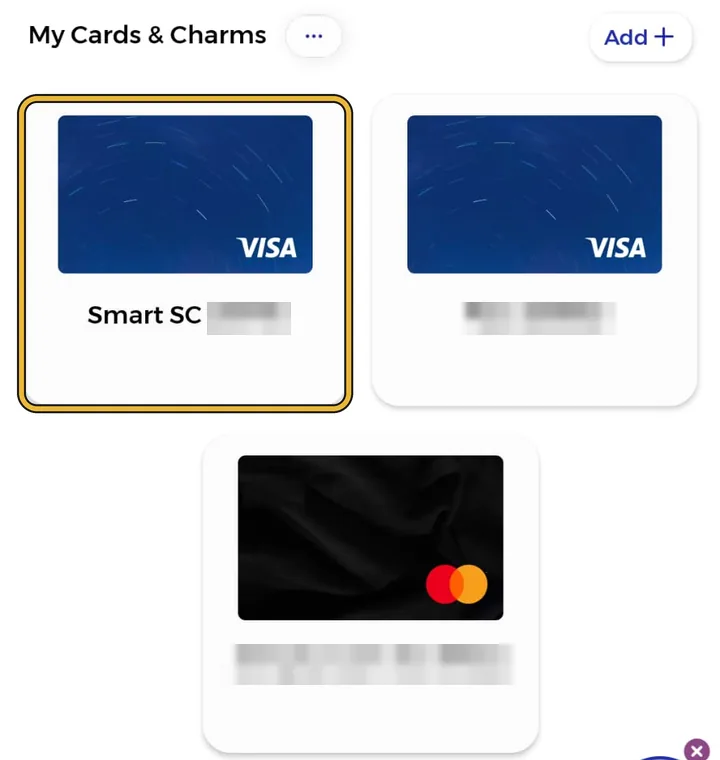
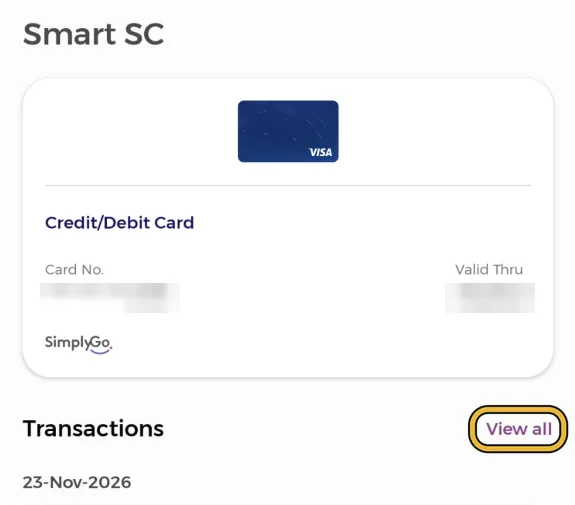
Tap View all
The card page shows your latest journeys. Tap View all next to Transactions to open the full history.
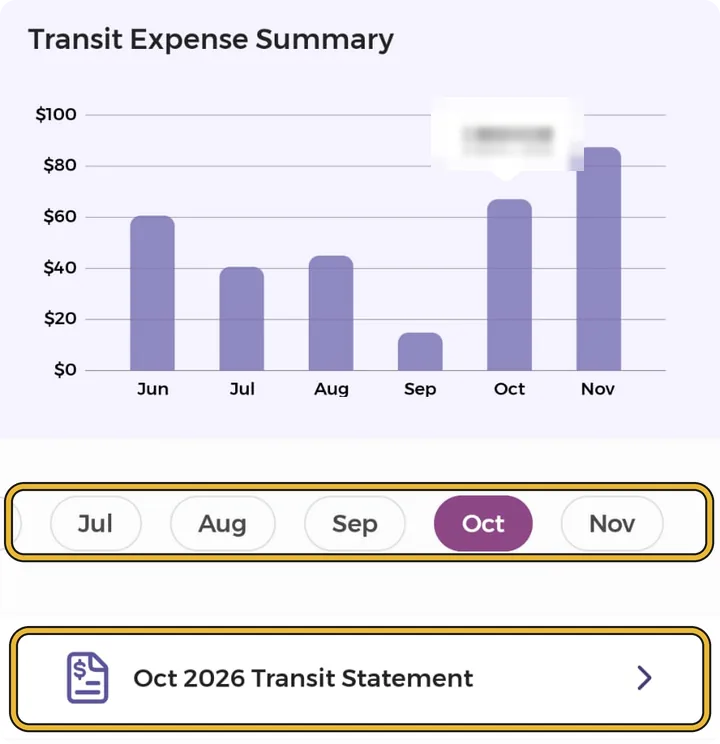
Pick a month, then tap its Transit Statement
Use the month chips under the spending chart. A month has its statement after the 10th of the next month. Tap the Transit Statement row to download the PDF.
Upload the PDFs
Go to the analyzer and drop in one file per month, or several at once. Repeat for each card you want to include.
Screenshots are from the SimplyGo app. Personal details are blurred. The app may change, so labels can differ slightly.
If something goes wrong
- No Transit Statement for the latest month. It appears after the 10th of the next month. Earlier months are ready.
- "Does not look like a SimplyGo Transit Statement". Check you chose the Transit Statement, not a card top-up or bank statement.
- Some stops are not on the map. Their printed names no longer match LTA's stop list. Totals still count them.
NAVIG's Transit journey analyzer reads the monthly Transit Statement PDF from the SimplyGo app in your browser, then maps your Singapore bus, MRT and LRT journeys. NAVIG is independent. EZ-Link and SimplyGo do not make or endorse it.